Backoffice Guide
The license manager adds a Licensing section to the Umbraco backoffice. It is a native backoffice extension: it uses the Umbraco UI Library and design tokens, looks and behaves like the built-in sections, and all its text is localizable (English ships with the package).
The Licensing section
Only backoffice users whose user group has access to the Licensing section see it. On first start the package grants the section to the Administrators group, once: if you remove it from that group later, it stays removed. Grant it to other groups under Users > User groups > Sections. Section access is the only permission: it covers licenses and products alike, including seeing product keys. Without it the section is hidden and the section's API refuses every request.
The tree on the left has two items:
| Tree item | Opens | Actions |
|---|---|---|
| Licensing | The license overview | Create license |
| Product license types | The list of products | Create |
| A product (under Product license types) | The product editor | Delete |
Opening the section shows the license overview.
Creating a license
Choose Create license on the Licensing tree item. An empty license editor opens; its first field is the company name.
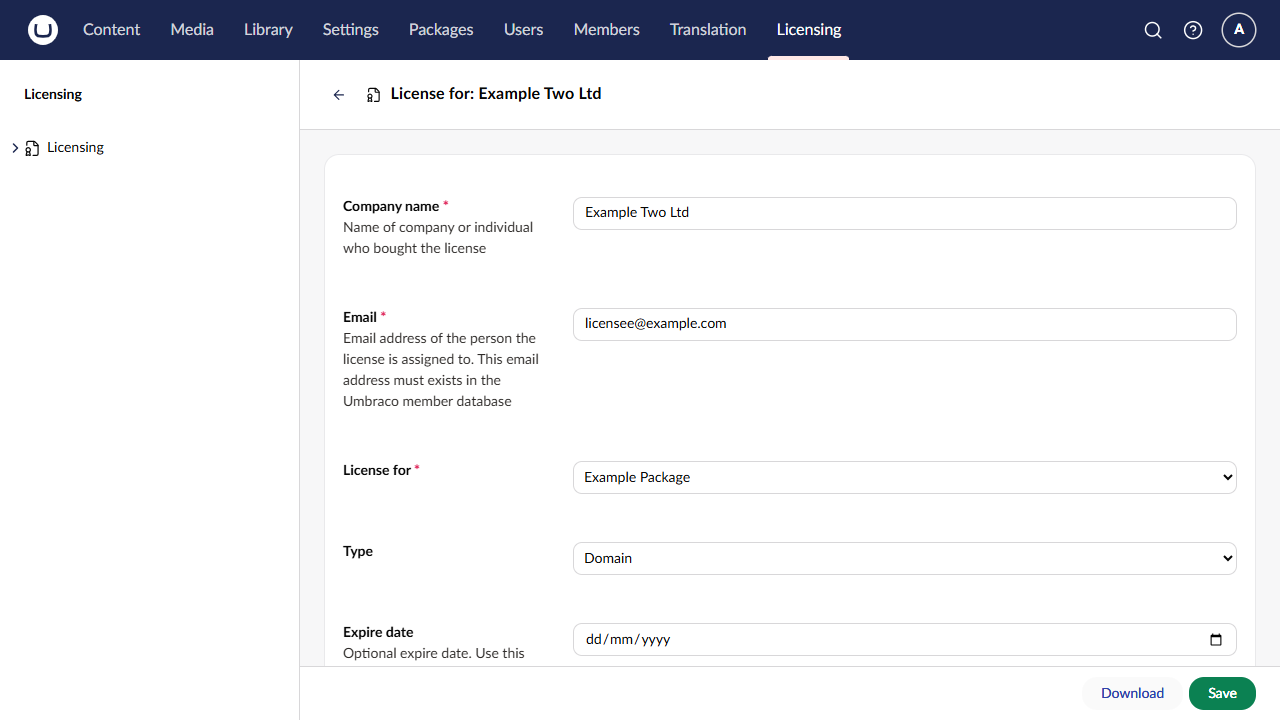
| Field | Rules and help text |
|---|---|
| Company name | Required. Name of company or individual who bought the license. At most 150 characters |
| Required. Email address of the person the license is assigned to. This email address must exists in the Umbraco member database. Exactly one member must have this email | |
| License for | Required. The product; only products that are not deleted are offered, sorted by name |
| Type | Domain, Server or Unlimited |
| Expire date | Optional. The license is invalid from the start of that day. A date in the past is allowed (the license then validates as expired) |
| Valid until version | Version independent, or a major version from 1 to 99. The license is invalid for later major versions |
| Always allow localhost | The license always works on localhost / 127.0.0.1. Hidden for Unlimited |
| Configure domain or IP | Three entries by default; Add adds one. Empty entries are ignored. Hidden for Unlimited |
Rules checked when saving, with the messages shown on the fields:
| Situation | Message |
|---|---|
| No company name | Name is required |
| No email | Emailaddress is required |
| No member has the email | Member matching the EmailAddress can't be found make sure the member exist so the license can be assigned |
| Several members have the email | More than one member has this email address; the license can't be assigned |
| Domain or Server without any domain or IP | At least one domain or IP address is required |
Domain or Server whose only entries are left out of the file (for example localhost) |
At least one domain or IP address is required; entries starting with *. and localhost are left out of the license |
| Too long | {field} can be at most {n} characters |
Domains and IPs are not checked for format: any text is accepted, as before. Entries that
start with *., the text localhost and duplicate .local variants are stored as
entered but left out of the generated license file, so a Domain or Server license needs at
least one other entry.
Save stores the license and shows License saved – The license configuration is saved to the database. Download saves first, then downloads the license file.
The customer must already exist as a member in the Members section; the license manager does not create members.
Finding and downloading licenses
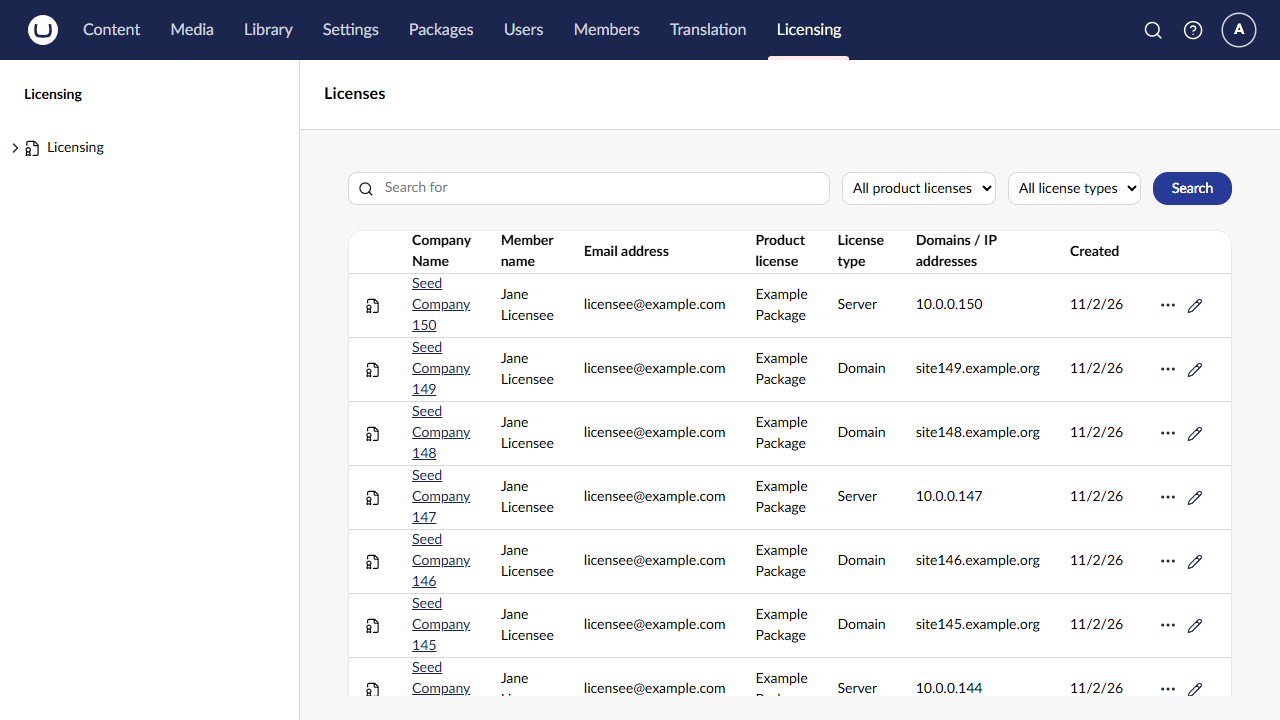
The overview lists the licenses newest first, 100 per page. With more than 100 results Umbraco's standard paging appears below the table. Columns: company name, member name, email address, product, license type, domains / IP addresses (comma separated) and the creation date.
Search with:
- Search for: text found in the domains/IPs, company name, member email address or member name. It matches anywhere in the value and ignores letter case; leading and trailing spaces are ignored.
- Product license: one product.
- License type: Domain, Server or Unlimited.
Press Search or Enter. The text and filters combine (all must match), and a new search starts at page 1. When nothing matches, the overview shows Sorry, no licenses found matching your criteria.
Each row has the actions Edit, Download and Delete (the … button), and the company name opens the editor.
A download generates the license file at that moment from the stored data, with the
member's current email address. The file is named after the product, lower-cased with
spaces replaced by -, for example example-package.lic. When the license's member no
longer exists, the download is refused with the member message above; enter the email
of an existing member in the editor first.
Editing a license
Open a license with Edit or its company name. The headline shows License for: {company name}, and the editor shows at least three domain/IP entries.
- After any change, download the license again and send the new file to the customer.
- Changing the type to Unlimited removes the stored domains and IPs when saving.
- When the license's product was deleted, the editor shows it as {name} (deleted). The license keeps that product and can still be saved and downloaded; a deleted product cannot be chosen for another license.
- When two administrators edit the same license, the last save wins.
Deleting a license
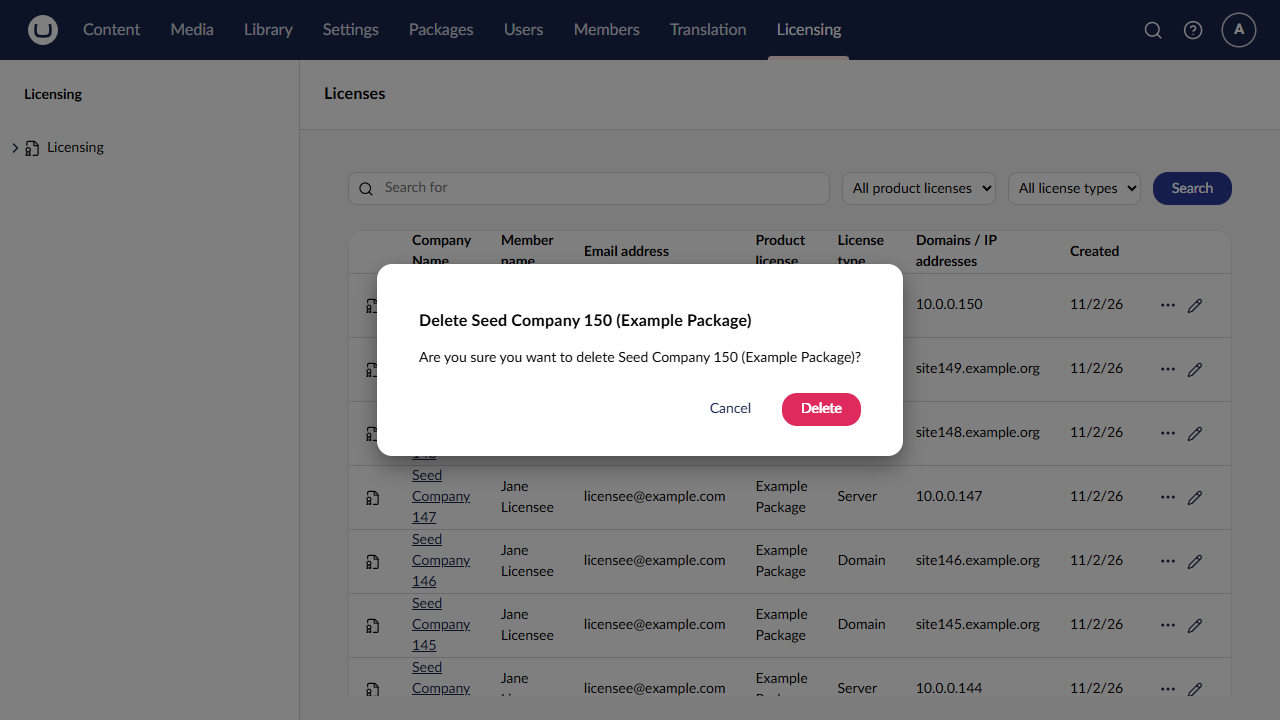
Choose Delete on an overview row. Umbraco's delete confirmation asks Are you sure you want to delete {company name} ({product})?; Cancel changes nothing.
A deleted license is hidden everywhere in the section: overview, search, editor and download. The record stays in the database marked as deleted; the section has no way to view or restore it.
Products
A product is a package that licenses are issued for. The backoffice keeps the legacy labels: the tree item is Product license types and the editor headline is License type: {name}.
Creating a product
Choose Create on Product license types, enter the name and confirm. The product gets a newly generated product key, trial support off, and the product editor opens.
Product names are unique among products that are not deleted, ignoring letter case: saving a name that is already used shows A product with this name already exists. The name of a deleted product can be used again.
The product editor
| Field | Description |
|---|---|
| Product license Id | Read-only. Use this Id in the LicenseHelper in case you want to generate licenses using the API |
| License Type | The product name (required: License type is required) |
| Productkey | Read-only, with a copy button. Put this in your license class. Never changes after creation |
| Product parameters | Read-only, with a copy button. Put this in your license class. Generated from the product key and the trial settings |
| Support Trial | The package works as a trial when no license file is present |
| Trial works on remote server | Shown when Support Trial is on. Off: the trial only works on localhost |
Copy the product key and product parameters into the package's license class (see Integrating the validator). Changing the trial settings changes the product parameters, never the key, so packages that already ship the key keep accepting their licenses; ship the new parameters with the next release of the package.
Product keys and parameters are shown only in this editor. Treat them like source code of the package: never paste them in tickets, logs or public documentation.
Deleting a product
Choose Delete on a product in the tree and confirm. The product disappears from the tree, the editor's product list and the overview filter. Its licenses stay visible, editable and downloadable; find them by search text.